
- When a prospect requests a rate agreement, the deal should be moved to the "Rate Agreement Requested" stage.
- On the deal record, set the "Commercial" and "Consumer" properties in order to view the applicable rate agreement properties.
- Commercial deals should have the "Commercial" property listed as "Yes".
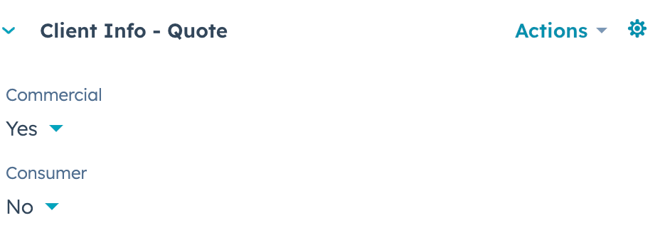
- Consumer deals should have the "Consumer" property listed as "Yes".
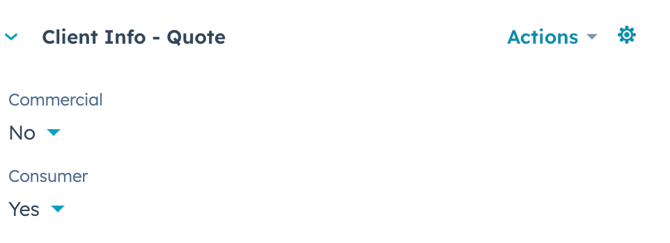
- Hybrid deals should have BOTH the "Commercial" & "Consumer" properties listed as "Yes".
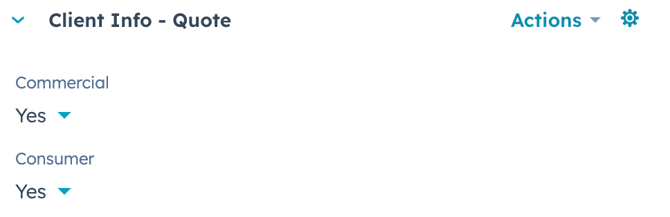
- Commercial deals should have the "Commercial" property listed as "Yes".
- For Commercial deals, check the appropriate commercial rates needed in the "Rate Agreement Rates" property and enter the "Account Description" and "Commission Rate" for each applicable rate.
NOTE: If the appropriate rates are not selected in this property, they will not populate in the Rate Agreement template.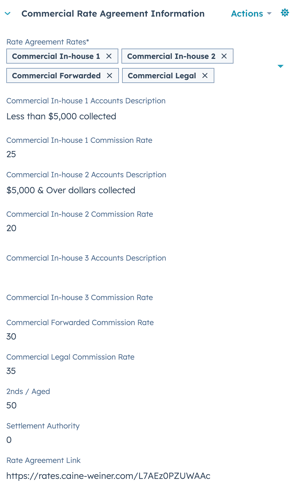
- For Consumer deals, check the appropriate consumer rates needed in the "Rate Agreement Rates" property and enter the "Account Description" and "Commission Rate" for each applicable rate.
NOTE: If the appropriate rates are not selected in this property, they will not populate in the Rate Agreement template.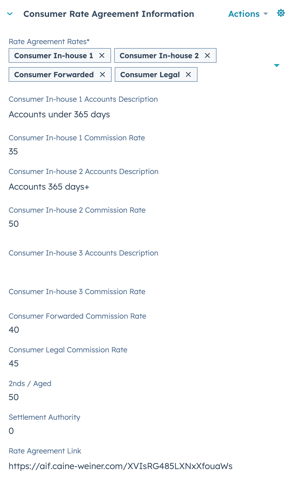
- Once the rates and required information have been entered into the appropriate properties, move the deal to the "Rate Review" stage, and go to the "Quotes" section in the right-hand column of the deal record and click the "+ Add" button.
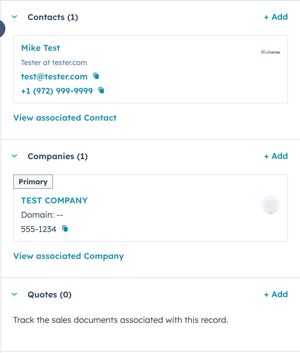
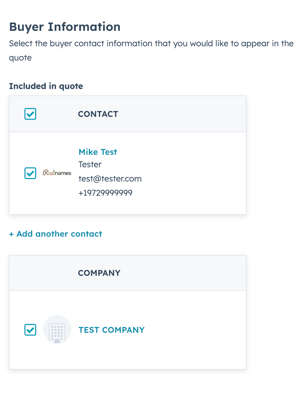
- The quote will automatically be populated with the information of the Contact & Company that is associated with the deal.
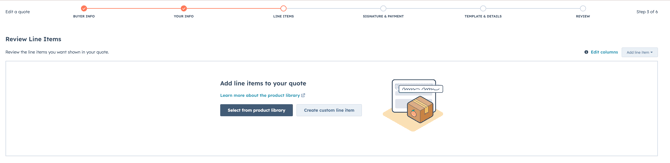
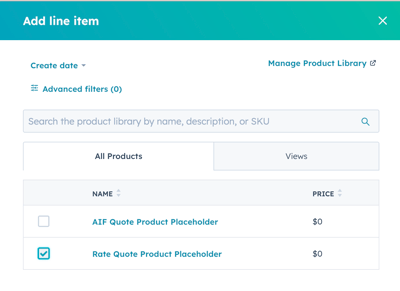
- On the line items screen, click the "Select from product library" button and add the "Rate Quote Placeholder" product.
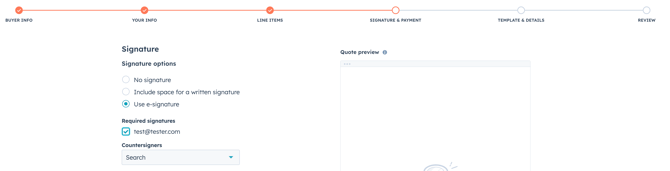
- In the "Signature & Payment" section, select the "Use e-signature" option and check the associated contact as a "Required signature"
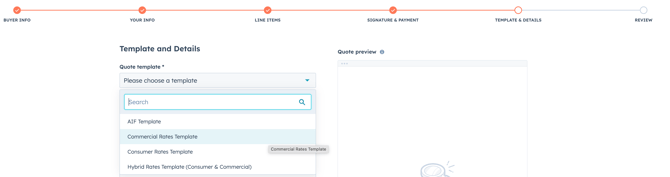
- In the "Template & Details" section, select the appropriate rate agreement template for the deal i.e. Commercial Rates Agreement, Consumer Rates Agreement, Hybrid Rates Agreement.
- Review the rate agreement to ensure that all of the rate properties from the deal record are populated into the template correctly and click the "Save" button.
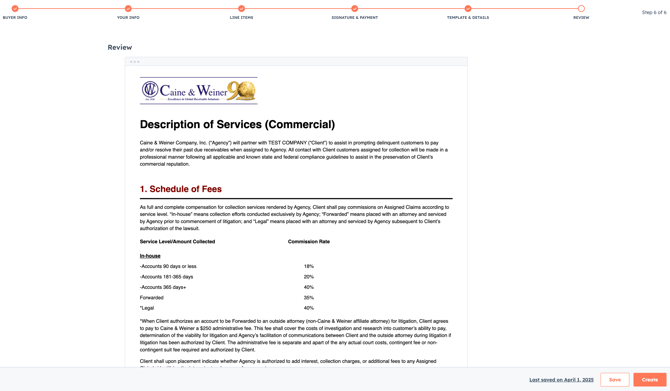
- Once the deal rates have been approved by a sales manager, re-enter the rate agreement quote and click the "Create" button to create the link to the rate agreement.