In the event that the Client Code Generator workflow does not automatically create a Client ID for a company, you can following the process below to manually trigger the workflow.
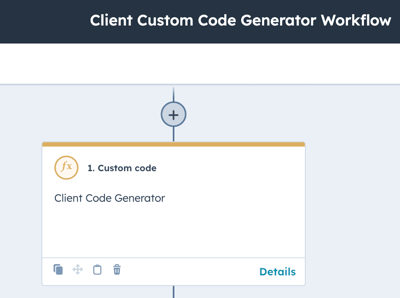
- Go to the "Client Custom Code Generator Workflow".
- Click on the "Custom Code" workflow action.
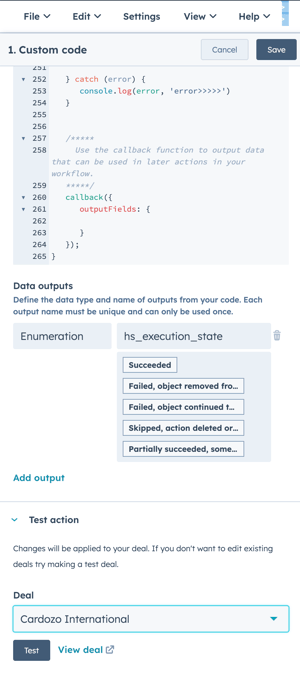
- Scroll to the bottom of the custom action where it says "Test Action" and select the deal that needs a Client ID created for the associated company record and click the "Test" button.
- If the code executed correctly, you will see a "SUCCESS" status and the company record associated with the deal in question should have a new Client ID created and saved on the company record.
NOTE: If you do not receive a success message, make sure that the company associated with the deal does not already have a Client ID. Also, if another company in the CRM already has the Client ID that was created, you will see that message instead of a success message.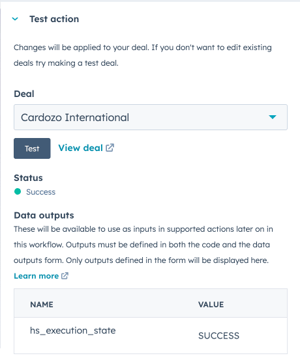
- Upon completion of creating the Client ID, click the "Cancel" button on the custom code action and exit the Client Custom Code Generator Workflow.